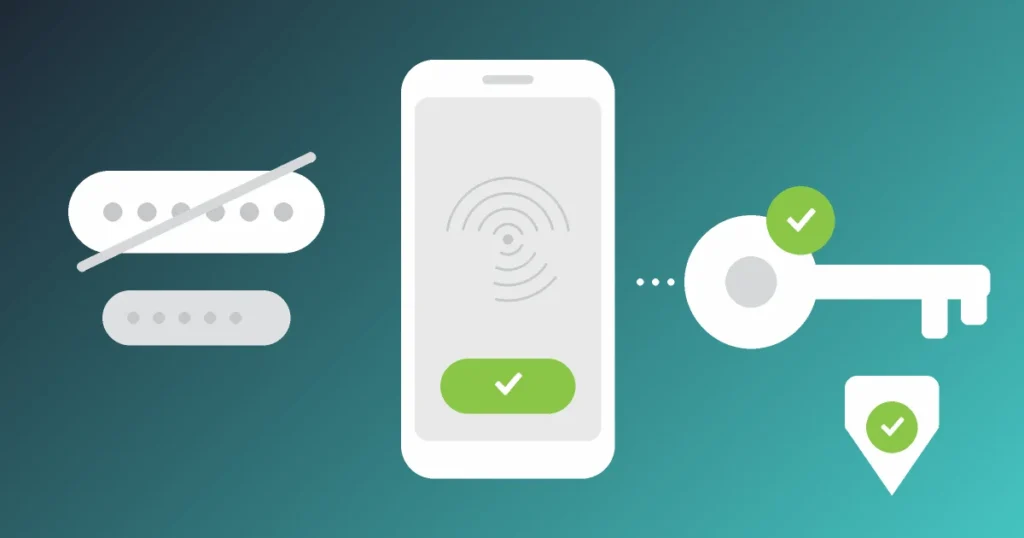
A passkey is a sign-in that replaces the password with a cryptographic key held on a phone, laptop or hardware security key and released by a fingerprint, face scan or device PIN. For most businesses using Microsoft 365, switching staff to passkeys is now worth doing, because they cannot be phished the way passwords and one-time codes can. The work is in the planning: which kind of passkey you allow, how people recover when a phone is lost, and which systems still need a password.
Quick answer: Passkeys let staff sign in with the device they already carry instead of a password, and a fake login page cannot capture them. The NCSC now recommends passkeys over passwords wherever they are offered, and Microsoft Entra ID supports them on every edition at no extra licence cost. Start with administrators and the people attackers target most, give everyone a backup sign-in method, and keep MFA in place for anything that cannot use passkeys yet.
In this guide: what passkeys for business actually are, why they beat codes and push prompts, the choice between synced and device-bound passkeys, what Microsoft 365 needs, what passkeys leave unsolved, and a check-list for deciding when to switch.
What is a passkey, in plain terms?
When someone registers a passkey with a service, their device creates a pair of keys. The public half goes to the service. The private half stays in the device or in the credential manager that stores it, and it never leaves. At sign-in, the service sends a challenge, the device asks the person to confirm it is them with a fingerprint, face or PIN, and then signs the challenge with the private key. The service checks the signature against the public key it holds. No secret is typed, sent or stored on the server.
That fingerprint or PIN is checked on the device itself. It is not sent to Microsoft, Google or anyone else; it only proves to the phone or laptop that the right person is holding it. Passkeys are built on the FIDO2 standards, which is why admin settings in Microsoft 365 label them “Passkey (FIDO2)”.
The National Cyber Security Centre changed its position on 23 April 2026. Its guidance, Passkeys: what you need to know, now recommends passkeys over passwords wherever they are available, and its accompanying technical paper found them at least as secure as, and generally more secure than, the strongest password paired with two-step verification. That advice is written for consumer accounts. At the time of writing the NCSC has not published separate guidance on passkeys for staff accounts, but the security reasoning carries straight across to a business tenant.
Why passkeys stop phishing where MFA codes fail
Most account takeovers in small businesses still start with a convincing email and a fake Microsoft sign-in page. Ordinary multi-factor authentication helps, but it has a weakness: a six-digit code or an approved push prompt can be relayed. The attacker’s page sits between the user and the real Microsoft login, passes the password and code along in real time, and keeps the signed-in session for itself.
A passkey closes that gap because it is tied to the web address it was created for. A passkey registered for Microsoft’s sign-in page will only answer a challenge from that genuine page. On a look-alike domain the device has nothing to offer, so there is nothing for the user to hand over, however convincing the page looks. This is what “phishing-resistant” means in practice, and it is why Microsoft treats passkeys as phishing-resistant credentials that also satisfy MFA.
| Sign-in method | Can a fake login page capture it? |
|---|---|
| Password alone | Yes, and it can be reused anywhere the same password was used |
| Password plus SMS or app code | Yes, if relayed within the code’s short life |
| Password plus push approval | Yes, if the user approves a prompt they did not start |
| Passkey | No, it only works on the genuine site it was registered for |
If your business has not set up MFA at all yet, do that first; our guide to setting up MFA in Microsoft 365 walks through it. Staff training still matters too, because passkeys protect the sign-in and nothing else. Our guide on protecting your business from phishing covers the rest.
Synced or device-bound: which suits a business?
There are two kinds of passkey, and the difference matters more for a business than for a home user.
A synced passkey is stored in a credential manager such as Apple Passwords, Google Password Manager or a business password manager, and copied to the user’s other devices through that provider’s cloud. If a phone is lost, the passkey is still on the laptop and can be restored to a new phone. That makes synced passkeys easy to live with, which is why they suit most staff.
A device-bound passkey never leaves the device it was created on. That might be a FIDO2 hardware security key on a keyring, or the Microsoft Authenticator app on a work phone. Nobody can copy it to another device, including an attacker who gets into someone’s personal Apple or Google account. The cost is recovery: lose the key and the passkey is gone with it.
| Question | Synced passkey | Device-bound passkey |
|---|---|---|
| Where it lives | Credential manager, copied across the user’s devices | One phone app or one hardware key |
| Lost phone | Restored from the user’s other devices | Needs a backup key or an admin to reissue access |
| Who controls the copy | The user’s Apple, Google or password manager account | Only the device holder |
| Best fit | Most staff | Admins, finance, directors |
The control question is the one to think about. Microsoft’s own documentation advises treating synced passkeys as phishing-resistant, but trusting them no more than any other authenticator whose make and model cannot be verified. If a member of staff saves their work passkey into a personal iCloud account, the security of your Microsoft 365 sign-in now depends partly on how well they protect that personal account. For general staff that trade is usually acceptable. For a global administrator or whoever approves payments, a hardware key or a device-bound passkey in Authenticator on a managed phone is the safer choice.
What switching on passkeys in Microsoft 365 involves
Passkeys are controlled in the Microsoft Entra admin centre under Authentication methods. According to Microsoft’s guide to enabling passkeys (FIDO2) for your organisation, they are available in every Entra ID edition, including the free one, with no extra licence. A few details are easy to miss:
-
Users must pass MFA before registeringMicrosoft requires a user to have completed multi-factor authentication within the previous five minutes before they can add a passkey. Anyone without a working MFA method needs a Temporary Access Pass from an admin first.Check: every user has a working MFA method before rollout day.
-
Passkey profiles cannot be switched off againThe newer passkey profiles let you set different rules for different groups, up to three profiles in total. Opting in to profiles is one-way: once enabled, you cannot opt back out.Check: decide your groups before you turn profiles on.
-
Enforcing attestation rules out synced passkeysAttestation lets Entra confirm the make and model of the authenticator. Turn it on and only device-bound passkeys are accepted, and users also lose the option of registering by scanning a QR code from another device.Check: use attestation on the admin profile, not on everyone.
-
Authenticator passkeys need recent phonesAt the time of writing, passkeys in Microsoft Authenticator need Android 14 or later, or iOS 17 or later. Signing in from a laptop with a phone nearby uses Bluetooth, so both devices need Bluetooth and an internet connection switched on.Check: list the phones staff actually use before choosing Authenticator.
-
Some existing policies block registrationMicrosoft notes that Conditional Access policies requiring an approved client app or an app protection policy can stop users registering a passkey in Authenticator. Guest accounts cannot register passkeys at all.Check: test registration with one pilot user under your real policies.
Allowing passkeys is only half of it. To make sure a stolen password alone can no longer get in, an admin needs a Conditional Access policy that requires a phishing-resistant authentication strength, at least for administrator roles. Conditional Access needs Entra ID P1, which is included in Microsoft 365 Business Premium. Turn that policy on in report-only mode first, check who it would block, and only then enforce it. Google Workspace also supports passkeys on work accounts, set up through its own admin console; the planning questions in this guide apply there too.
What passkeys do not fix
Passkeys take the most common way in off the table. They do not make an account untouchable, and a rollout plan that assumes they do will leave gaps.
Lost phones and recovery
Recovery is where most of the real work sits. Every user should have at least two ways to sign in, for example a synced passkey plus Authenticator, or two hardware keys with one kept somewhere safe. Write down who can issue a Temporary Access Pass, and how that person confirms the caller is genuine before doing so. A help-desk process that resets access for anyone with a plausible story undoes the protection. Our guide on what to do when an employee loses a work laptop covers the wider steps when a device goes missing.
Stolen sessions and infected devices
A passkey protects the moment of sign-in. If malware on a laptop steals the browser’s session cookie after a successful login, the attacker can reuse that session without ever needing the passkey. Keeping devices patched, managed and running endpoint protection still matters, as do sensible session lifetimes.
Systems that still need a password
Older line-of-business applications, some supplier portals, network equipment and anything that does not sign in through Microsoft or Google may not support passkeys yet. Those accounts keep a strong, unique password from a password manager plus MFA, which is exactly what the NCSC advises where passkeys are not offered. Routing as many apps as possible through Microsoft sign-in shrinks that list over time.
Should your business switch now?
For most small businesses on Microsoft 365, the answer is yes, in stages. There is no licence to buy, the phones staff already carry usually support it, and it removes the attack that causes most account takeovers. Cyber Essentials already counts FIDO2 passkeys as multi-factor authentication in its April 2026 requirements, so they fit straight into the MFA that scheme expects on cloud services; our guide to what Cyber Essentials involves explains the rest of the scheme.
A sensible order looks like this:
- Protect administrators first. Give every admin account two hardware keys or a device-bound passkey, and require phishing-resistant sign-in for admin roles.
- Add the people attackers target. Directors, finance and anyone who can change bank details or approve payments are next.
- Pilot with a small group. Five or six willing users on a mix of phones will surface the registration problems before everyone else meets them.
- Write the recovery process. Decide how a lost phone is handled before the first one is lost, including who can issue access and how they check identity.
- Roll out to everyone, then tighten. Once most people have registered, require phishing-resistant sign-in more widely and keep MFA for the systems that cannot use passkeys.
When to wait: if staff use shared devices with no individual logins, phones too old to run a current operating system, or a core system that cannot sign in through Microsoft, sort those out first. Passkeys work best on individually assigned, up-to-date devices.
Frequently asked questions
Do passkeys replace multi-factor authentication?
They combine both steps into one. A passkey is something you have, the device, confirmed by something you are or know, a fingerprint or PIN, so Microsoft and the Cyber Essentials requirements both treat it as MFA. You still need MFA on any account that cannot use passkeys yet, so keep your existing methods in place as a fallback.
What happens if a member of staff loses their phone?
With a synced passkey, it is still on their other devices and can be restored to a replacement phone. With a device-bound passkey, they sign in with their backup method, such as a second hardware key, or an admin issues a Temporary Access Pass after checking who they are. Remove the lost device’s passkey from their account either way.
Can staff use personal phones for work passkeys?
They can, and many businesses allow it for general staff. The trade-off is that a synced passkey then lives in the person’s personal Apple or Google account, which you do not control. For administrators and finance roles, use hardware security keys or company-managed phones instead.
Do passkeys cost anything?
Not in Microsoft Entra ID, where passkeys are included in every edition at the time of writing. Costs come from hardware security keys if you choose them, usually for administrators, and from the time spent planning recovery and helping people register. Enforcing passkeys through Conditional Access needs Entra ID P1, included in Business Premium.
Passkeys for business are no longer an experiment: they are supported in Microsoft 365 today, recommended by the NCSC and counted as MFA by Cyber Essentials. The businesses that get the most from them start with administrators, plan recovery before rollout and keep strong passwords and MFA for the systems that are not ready. If you want a second pair of hands on the Microsoft 365 side, that is work we do every week.
Make Phishing-Resistant Sign-In the Default
Our cyber security team can review how your staff sign in today, plan a staged passkey rollout and set up the Conditional Access policies that enforce it.