Before you start (do these first)
- Do not wipe or trade-in your old phone yet.
- Make sure you know the passwords to all accounts protected by 2FA.
- Find/print backup codes for critical accounts (email, bank, GitHub, cloud).
- Look in each account’s Security / Two-Step Verification page.
- If your company manages your MFA, ask IT whether they require re-registration.
A. Microsoft Authenticator
A1) Personal Microsoft account (Outlook/Hotmail/Xbox)
Best method: Cloud backup & recovery
On your old phone
- Open Microsoft Authenticator → ⋮ (menu) → Settings.
- Turn on Cloud backup (Android) or iCloud backup (iOS).
- Ensure you’re signed into the same Microsoft account you use for Authenticator.
On your new phone
- Install Microsoft Authenticator.
- Open it → Restore from backup (iOS) or Begin recovery (Android).
- Sign in with the same Microsoft account → follow prompts.
- Test a sign-in to confirm codes/approvals work.
- Only then, remove the account from the old phone (optional).
If “Restore” isn’t shown, tap Add account → Personal account → Sign in, then the app should offer to Recover.
A2) Work/School Microsoft 365 (Entra ID / Azure AD)
Most orgs require re-registering the new phone. Backup/restore may be disabled by policy.
On your computer (recommended)
- Go to My Sign-Ins:
myaccount.microsoft.com/security-info(or your org’s security info link). - Click Add sign-in method → Authenticator app.
- On the new phone, open Authenticator → Add account → Work or school account → Scan QR code shown on your PC.
- Approve the test notification.
- Back on the Security Info page, set the new phone method as Default (if required).
- Remove the old phone Authenticator entry.
If you can’t access the portal, ask IT to reset your MFA so you can enrol the new device.
B. Google Authenticator
You have two options: Cloud sync or Local transfer.
B1) With Google cloud sync (easiest)
- On the old phone, open Google Authenticator → sign into your Google Account and ensure Sync is ON.
- On the new phone, install the app → sign into the same Google Account → your codes appear.
- Test, then remove from the old device.
B2) Without cloud sync (local QR transfer)
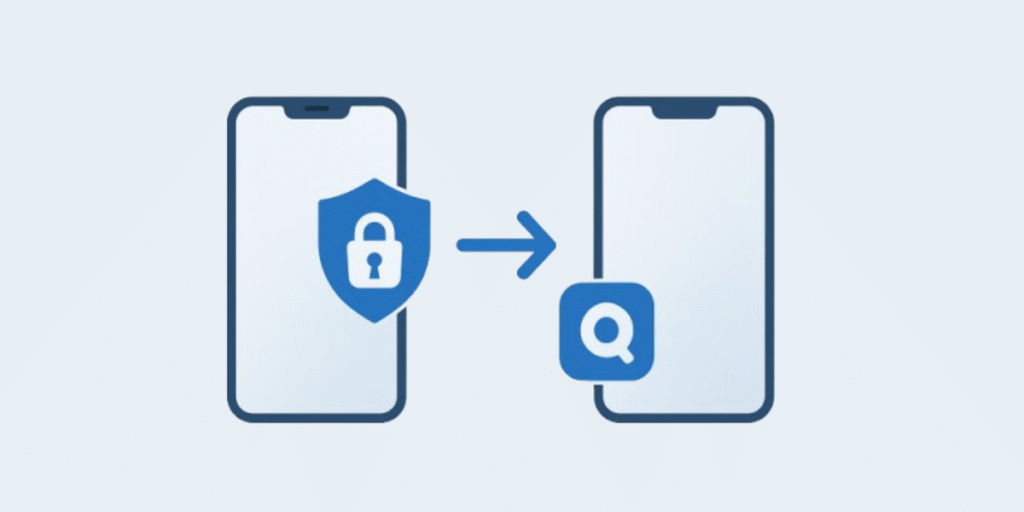
- Old phone: Google Authenticator → Menu (☰) → Transfer accounts → Export.
- New phone: Google Authenticator → Transfer accounts → Import → scan the QR code shown on the old phone.
- Confirm codes work; then delete from old phone if desired.
C. Authy
Authy supports multi-device (if enabled).
- On the old phone (or any device with Authy), open Authy → Settings → Devices.
- Ensure Allow Multi-device is ON (temporarily).
- Install Authy on the new phone → verify with your phone number and SMS/voice.
- Your tokens sync.
- Back on any device, turn OFF Multi-device again for security.
- Remove the old phone from the Devices list.
D. Duo Mobile
Duo can restore accounts, but many workplace Duo accounts must be re-enrolled.
- Personal accounts: In Duo Mobile on the old phone, enable Duo Restore (iCloud/Google Drive). On the new phone, install Duo → Restore using the same platform account.
- Work accounts: Use your org’s Duo Self-Service Portal or ask IT to re-enrol the device and scan the new QR code.
E. Other TOTP apps (1Password, Bitwarden, etc.)
- 1Password / Bitwarden: If you store 2FA secrets in the vault, just sign in to the app on your new phone—codes sync with your vault.
- Generic TOTP apps (no sync/transfer): You’ll need to turn off 2FA then re-enable on each account’s website, scanning the new QR code with your new phone. Use backup codes to get in if prompted.
F. App-by-app “manual” move (universal method)
Use this if no transfer/backup is available, or you lost your old phone.
For each account protected by 2FA:
- Sign into the account on a computer.
- Go to Security → Two-Step Verification / MFA.
- Choose Change / Move / Disable & Re-set authenticator.
- Scan the new QR code with your new phone’s authenticator app.
- Enter the 6-digit code to confirm.
- Save/print new backup codes.
- Remove the old device from the account’s list.
If you can’t sign in, use backup codes, recovery email/phone, or contact the provider’s support. Work accounts: ask IT to reset MFA.
Troubleshooting & Safety
- New phone shows wrong codes/time-based failures
- Ensure the phone’s date & time are automatic and correct, then retry.
- Approvals still go to old phone
- For Microsoft: remove the old sign-in method at
myaccount.microsoft.com/security-info. - For others: remove the old device from the account’s Trusted devices / 2FA devices list.
- For Microsoft: remove the old sign-in method at
- Lost old phone and no backup codes
- Use recovery options (email/SMS, security questions) or contact support with ID verification.
- Work accounts: raise a ticket—IT can temporarily bypass or reset MFA.
- Company blocks authenticator backup/restore
- Follow the re-enrol process for each corporate app; policies may require new QR codes.
- Finish by cleaning up
- Once everything works on the new phone, remove the old device from each account and securely wipe the old phone before selling/returning.
Quick checklist (printable)
- Backup/sync enabled (or backup codes saved)
- Microsoft personal: Authenticator → Restore worked
- Microsoft work/school: Security Info → Add Authenticator → Scan QR
- Google: Cloud sync or Transfer accounts completed
- Authy: Multi-device on → new phone added → multi-device off
- Duo: Personal restore or re-enrol (work)
- Tested codes/approvals for all critical apps
- Removed old phone from 2FA devices lists
- Stored new backup codes safely
Need help rolling out MFA safely across your business? Our managed IT support team handles authentication and account security for UK businesses.