Most business laptops and desktop PCs give four to five years of useful service, and a well-built desktop can manage a little longer. The firmer limit is not age but support: once a machine can no longer run an operating system that still receives security updates, it should be replaced or taken off the network, however well it seems to work.
Quick answer: Plan on keeping business laptops for about four years and desktops for four to six, then check each machine against its support dates rather than its age. A device is due for replacement when it cannot run a supported version of Windows or macOS, when repairs cost more than a sensible share of a new one, or when it slows the person using it every day. Replace a portion of the fleet each year instead of everything at once.
In this guide: what really decides how long to keep business laptops and PCs, the Windows and Mac cut-offs that matter in 2026, the signs a machine is due, and how to spread replacement so it never lands as one large bill.
How long do business laptops and PCs really last?
Ask a laptop manufacturer and you will usually hear three to five years. That range is fair, but it hides the things that move a machine to one end of it or the other. A laptop that travels in a bag every day, gets used on a lap and runs on battery for half the week ages faster than the same model docked on a desk. Business-grade ranges also tend to last longer than consumer models bought from a high-street shelf, because they are built with replaceable parts, longer warranties and firmware updates that keep coming for years.
A reasonable starting point for a small business looks like this:
| Device | Typical service life | What usually ends it |
|---|---|---|
| Laptop used daily on the move | 3 to 4 years | Battery wear, hinges, keyboards, dropped-bag damage |
| Laptop that mostly stays docked | 4 to 5 years | Performance falling behind the software, end of OS support |
| Desktop PC | 4 to 6 years | End of OS support, storage failure, slow processor |
| Mac laptop | 5 to 7 years | macOS support ending, battery service |
Treat these as planning figures, not rules. The question of how long to keep business laptops has a better answer than an average: keep each one for as long as it is supported, repairable and not costing its user time. The rest of this guide is about checking those three things.
Why the support date matters more than age
A five-year-old laptop that still receives security updates is a safer machine than a three-year-old one that does not. Software makers support each operating system version for a fixed period, and after that the fixes stop. The National Cyber Security Centre’s guidance on keeping devices and software up to date is blunt about what to do next: replace unsupported software and devices as soon as you are able.
There is a certification angle too. The Cyber Essentials requirements say software on in-scope devices must be licensed and supported, that unsupported software is removed or isolated from the internet, and that high and critical security updates are installed within 14 days of release. A laptop stuck on an out-of-support operating system fails that test, and so does the whole application if it is in scope. Our guide to what Cyber Essentials involves covers the scheme itself; the point here is that an ageing fleet can quietly block renewal.
Support dates also shape insurance and contracts. Many cyber insurance proposal forms ask whether all systems run supported software, and a “yes” that turns out to be untrue weakens a claim. That is a strong reason to know the date for every device rather than guessing.
Windows 10, Windows 11 and the hardware cut-off
Windows 10 reached the end of support on 14 October 2025. Microsoft’s Extended Security Updates programme lets organisations buy up to three more years of security fixes for each device. At the time of writing, the first year is listed at $61 per device through volume licensing, and the price doubles each following year. ESU brings security fixes only: no new features, and no technical support beyond getting ESU itself working. It is a bridge for machines you have a plan to replace, not a reason to keep them.
Why some PCs cannot move to Windows 11
Windows 11 needs a compatible 64-bit processor on Microsoft’s supported list, 4 GB of memory, 64 GB of storage, UEFI firmware with Secure Boot and a TPM 2.0 security chip. The processor requirement is the one that catches people out. Plenty of machines that are still quick enough for email and spreadsheets have a chip that is not on the list, and there is no supported way round that. Those machines have reached the end of their business life, whatever their age.
Windows 11 versions have deadlines too
Moving to Windows 11 is not the end of the matter. Microsoft supports each yearly Windows 11 Home and Pro release for 24 months. Version 24H2 of Home and Pro left servicing on 14 October 2026, and version 25H2 is due to leave on 13 October 2027. A laptop that has been held back on an older release, often because updates were paused or a device ran out of disk space, is unsupported even though it runs Windows 11. Check the version, not just the name.
How long Macs stay supported
Macs often last longer in business use, but the rules are less tidy. Apple does not publish a fixed support period for each macOS release, so the practical test is whether a Mac can still install the current or recent version of macOS and is still receiving security updates. When a model drops off the list for a new macOS release, it is time to plan its replacement.
Hardware repair has published limits. Apple classes a product as vintage or obsolete by how long ago it stopped selling it: vintage after more than five years, obsolete after more than seven. Vintage products can still be repaired while parts last; Apple ends all hardware service for obsolete ones, and repairers cannot order parts. For a business, a Mac heading into obsolete status is one awkward fault away from being unrepairable, which is a poor position for a machine somebody depends on.
Batteries wear on any laptop. Apple rates each Mac notebook for a maximum number of charge cycles, after which the battery is treated as consumed and holds up to 80% of its original capacity. A battery replacement is usually worth doing once on a Mac in its third or fourth year; a second one is a sign the machine is near the end.
Signs a laptop or PC is due for replacement
Support dates set the outer limit. Inside that limit, these are the signs that keeping a machine is costing more than it saves:
-
It cannot run a supported operating systemNo Windows 11 support, an old Windows 11 release it cannot update past, or a Mac left off the latest macOS.Check: the OS version on every device against the vendor’s dates.
-
The repair quote is a large share of a new machineA new screen, keyboard and battery on a four-year-old laptop can cost close to what a replacement would, with nothing else renewed.Check: compare the quote with a replacement before approving it.
-
The battery no longer lasts a meetingStaff tethered to a socket stop working the way the laptop was bought for.Check: the battery health report in Windows or System Information on a Mac.
-
Daily tasks have become slowTeams calls stutter, large spreadsheets hang, and the user spends minutes a day waiting. Across a year, that waiting usually costs more than the hardware.Check: ask the user, then look at memory and disk usage during normal work.
-
The warranty has ended and faults are repeatingA second unrelated fault within a few months suggests more are coming.Check: the warranty end date and the ticket history for that device.
-
It cannot meet your security settingsNo TPM for full-disk encryption, no space for updates, or it keeps failing compliance checks in your device management.Check: the compliance report in Microsoft Intune or your management tool.
One sign on its own is rarely decisive. Two or three together on the same machine make the case.
How to plan a rolling replacement
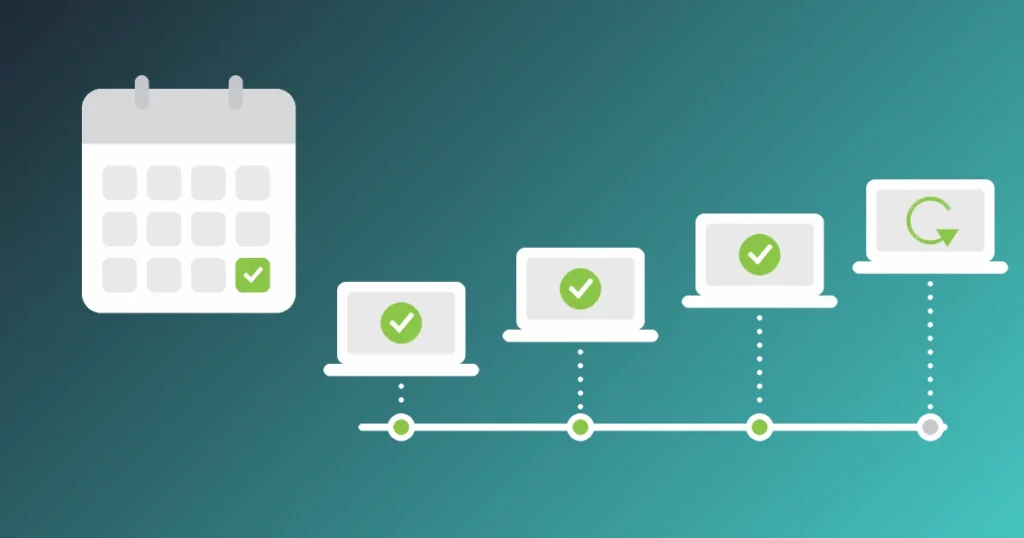
Replacing every laptop in the same month makes a large bill and a busy week, and it means every machine ages in step and runs out together next time. A rolling plan replaces roughly a quarter of the fleet each year on a four-year cycle, so the cost is predictable and the setup work is manageable.
- List what you have. Model, purchase date, warranty end, operating system version and user for every device. An IT asset register is the right home for this, and it is the step most businesses skip.
- Add the support dates. For each machine, note when its operating system support ends and whether it can move to the next version. This often changes the order more than age does.
- Sort into years. Anything already unsupported goes first. Then order the rest by support date, warranty end and the signs above.
- Set a standard specification. Pick one or two models with enough memory and storage to last four years. Buying slightly above today’s needs is what makes a four-year life realistic.
- Make setup repeatable. With Microsoft Intune and Windows Autopilot, a new laptop can be handed to the user and configure itself, which takes most of the effort out of yearly replacement.
- Review once a year. Recheck the list, budget for the next batch and move any machine that has failed early up the queue.
If you would rather have someone else build that list, an IT audit checks devices and licences against their support dates and gives a prioritised replacement order.
Keep, repair, redeploy or retire
Not every old machine has to leave the building straight away. A laptop that is still supported but too slow for a heavy user may suit someone whose work is mostly email and a browser. A machine that is out of support should not be redeployed to anyone; it should be retired. Spare devices kept “just in case” need the same updates as the ones in use, or they become a risk the day they are pulled out of a drawer.
Dispose of old devices properly
Deleting files does not remove data. The NCSC’s guidance on secure sanitisation of storage media notes that a factory reset which deletes the encryption keys is usually enough on a device protected by BitLocker or FileVault. Unencrypted drives need a full overwrite that is checked afterwards, or physical destruction where the data is sensitive. Sign the device out of your management system, remove it from your register with the date and method of disposal, and use a recycler that gives you a certificate. Electrical waste rules mean old IT equipment cannot simply go in the general bin.
Frequently asked questions
Is it worth paying for Windows 10 Extended Security Updates?
Only as a short bridge. ESU keeps security fixes coming for a machine that cannot move to Windows 11, but the price doubles each year and the programme ends after three years at most. If a device cannot run Windows 11 at all, the money is usually better spent on its replacement, with ESU covering the gap while the new one arrives.
Can we keep an old PC running for one piece of software?
Sometimes, if it is isolated. A machine running unsupported software should be cut off from the internet and from email, kept on its own network segment and used for that one job. If the software vendor has a supported version or a cloud alternative, moving to it is safer and usually cheaper than guarding an old PC indefinitely.
Should we lease laptops instead of buying them?
Leasing spreads the cost and returns the machine at the end of a fixed term, which makes a rolling replacement easier to stick to. Buying is often cheaper over a full four or five years. The choice is a cash-flow decision; ask your accountant, because leasing and purchase are treated differently for tax and capital allowances.
Do staff laptops need replacing at the same time as desktops?
No, and it is better if they are not. Laptops usually wear out sooner than desktops because they travel and run on battery. Treat each device on its own dates and condition, and keep a single replacement list so both types are planned in the same yearly budget.
The working answer for most small businesses is a four-year plan for laptops, a little longer for desktops, and a yearly check of support dates that overrides both. Pair the replacement list with sound proactive maintenance and most machines reach the end of their planned life without becoming a problem first.
Let Us Look After the Lifecycle
Our managed IT support packages add proactive monitoring, patching and endpoint management, so ageing and unsupported machines are spotted before they cause trouble.