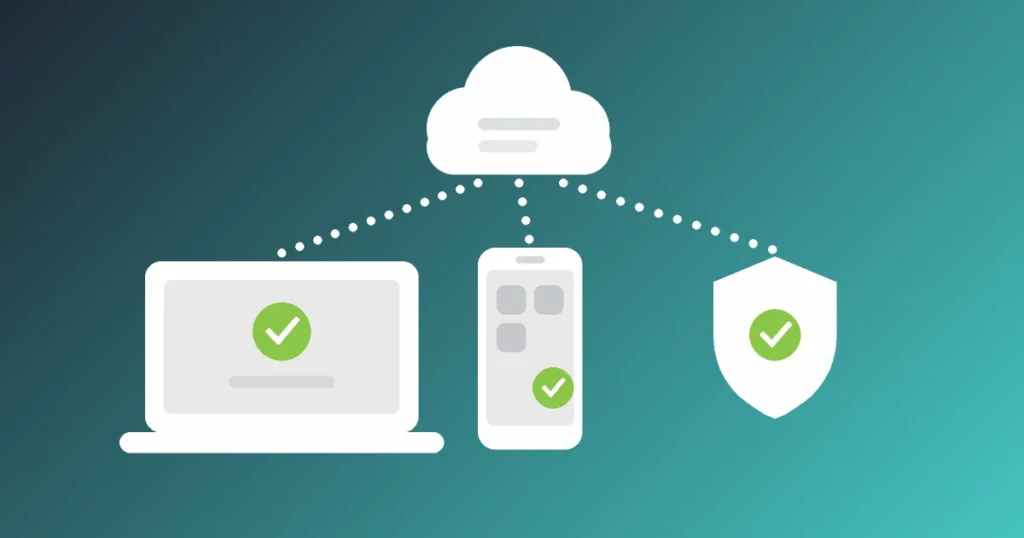
Microsoft Intune is the part of Microsoft 365 that manages the devices your staff use for work. It sets up and secures company laptops from the cloud, keeps business data inside approved apps on personal phones, and tells you which devices are falling short so you can block them from company email and files. For most small businesses it comes with Microsoft 365 Business Premium rather than as a separate purchase.
Quick answer: Microsoft Intune for small business is a cloud service for managing work devices. On company-owned Windows laptops, Macs, iPhones and Android phones it applies settings, installs apps, turns on encryption and can wipe a lost device. On staff’s own phones it can protect just the business apps without taking over the phone. It is included in Microsoft 365 Business Premium, but it does nothing until devices are enrolled and policies are written.
In this guide: what Intune actually does day to day, what you need before you can use it, how company devices and personal phones are handled differently, and a first setup that suits a small office.
What does Intune actually do?
Strip away the product names and Intune does four jobs. It configures devices: password rules, screen lock, encryption, Windows Update timing, Wi-Fi profiles and the settings you would otherwise set by hand on each machine. It delivers apps, so a new laptop gets Microsoft 365 apps, the line-of-business software and the VPN client without anyone installing them. It checks compliance, marking each device compliant or not against rules you set, such as “encryption on” or “operating system no older than this version”. And it acts remotely: restart, sync, reset or wipe.
The value for a small business is that none of this needs a server in the office or a laptop to come back to base. A member of staff working from home picks up a new policy the next time their device checks in over the internet. That matters if half the team is rarely in the same building, which is now normal rather than unusual.
It also gives you a single list of every enrolled device, its owner, its operating system version and whether it is encrypted. That list is the starting point for an IT asset register, though it only shows the devices that have been enrolled, which is not the same as every device you own.
What you need before you can use Intune
The licence comes first. Intune Plan 1 is the base service, and Microsoft 365 Business Premium includes it along with Microsoft Entra ID P1, which you need for Conditional Access and for automatic enrolment of Windows devices. Business Basic and Business Standard do not include Intune. If you are weighing the upgrade, our comparison of Business Standard and Business Premium sets out what else the higher plan adds. Each user who has devices managed needs a licence that includes Intune; Microsoft also sells Plan 2 and the Intune Suite as add-ons, which a small office rarely needs at the start.
Then check the devices themselves. Microsoft publishes a list of supported operating systems for Intune, and at the time of writing it supports the three most recent versions of each platform: iOS and iPadOS 18 or later, macOS 15 or later, Android 10 or later for user-based management, and Windows 11. Windows 10 reached end of support on 14 October 2025; Microsoft says such devices can still enrol but functionality is not guaranteed. An old laptop that cannot run Windows 11 is a replacement decision, not an Intune problem.
Three pieces of groundwork catch people out:
-
An Apple push certificate for iPhones, iPads and MacsIntune cannot manage any Apple device until you create an Apple MDM push certificate. It lasts 365 days and must be renewed with the same Apple account that created it.Check: create it with a shared company Apple account, not someone’s personal one.
-
Apple Business Manager for company-owned Apple devicesFree to join, it lets devices bought through an authorised supplier appear in Intune automatically and enrol themselves when switched on.Check: ask your supplier whether they can add purchases to your Apple Business Manager account.
-
A managed Google Play connection for AndroidAndroid work profiles and company-owned Android phones need Intune linked to a managed Google Play account.Check: link it with a company Google account that will outlast any one employee.
Company laptops versus staff’s own phones
The most useful thing to understand about Intune is that it handles devices you own differently from devices your staff own, and it should. A company laptop can be fully managed: you control its settings, its apps and, if it goes missing, you can erase it completely. A member of staff’s personal phone should not be treated like that. Few people will agree to their employer being able to factory reset the phone that holds their family photos, and they are right to refuse.
For personal phones Intune uses app protection policies, which Microsoft describes as protecting company data without requiring device enrolment. The rules sit inside Outlook, Teams, OneDrive and the other Microsoft apps rather than on the phone as a whole. You can require a PIN or fingerprint to open them, stop company data being copied into personal apps, and remove only the company data when someone leaves. The policies do not apply when the same app is used with a personal account.
| Question | Company-owned device | Staff member’s own phone |
|---|---|---|
| How it is managed | Enrolled in Intune (device management) | App protection policies, usually no enrolment |
| What you control | Settings, encryption, updates, apps | Company data inside Microsoft apps |
| If it is lost or the person leaves | Full wipe back to factory settings | Remove company data only |
| What you can see | Device details, compliance status, installed managed apps | App version and protection status, not personal content |
Write this split into your device policy so staff know what the business can and cannot see on a personal phone. It removes most of the resistance before it starts.
How do devices get into Intune?
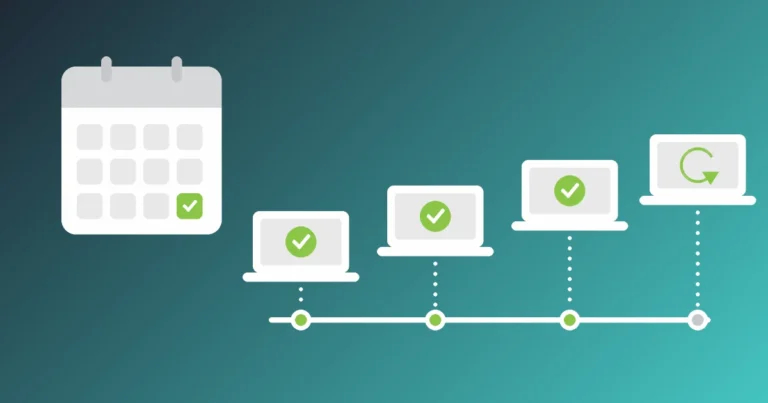
Enrolment is the step that turns a licence into a managed device, and the right route depends on the device and on whether it is new. The aim is that a new laptop can go straight from the box to the employee, who signs in with their work account and gets everything else automatically. Our IT onboarding checklist shows how that fits into a new starter’s first day.
| Device | Usual enrolment route |
|---|---|
| New Windows laptop | Windows Autopilot: the supplier registers the device to your organisation, and it joins Microsoft Entra ID and enrols when the user first signs in |
| Windows laptop already in use | Join it to Microsoft Entra ID with the user’s work account, with automatic enrolment turned on; reset it first if it carries old local accounts |
| Company iPhone, iPad or Mac | Automated device enrolment through Apple Business Manager, so it enrols at first start-up |
| Company Android phone | Android Enterprise fully managed enrolment, set up during first start-up |
| Staff member’s own phone | App protection policies; optionally an Android work profile or iOS user enrolment |
Windows Autopilot’s automatic enrolment needs Entra ID P1, which Business Premium includes. If your supplier cannot register devices for you, an existing machine’s hardware hash can be uploaded instead, but buying through a supplier who handles it saves a step on every laptop. Macs are worth a separate thought, because many small offices run a mix; our Mac IT support covers managing them alongside Windows.
A sensible first setup for a small office
Intune has hundreds of settings, and turning on too many at once is the usual way a rollout goes wrong. A small business needs a short, deliberate first set, tested on a few people before everyone gets it.
- Start with a pilot group. Put two or three willing users, ideally including someone senior, in a group and assign every new policy to them first. Give it a week before widening it.
- Turn on encryption. Push BitLocker to Windows laptops and FileVault to Macs, with recovery keys stored centrally rather than written on a sticky note. This is the setting that matters most if a device is lost, as our guide to a lost work laptop explains.
- Control updates. Set Windows Update rings so a small test group gets updates a few days ahead of everyone else, with a deadline that forces a restart if a user keeps postponing it.
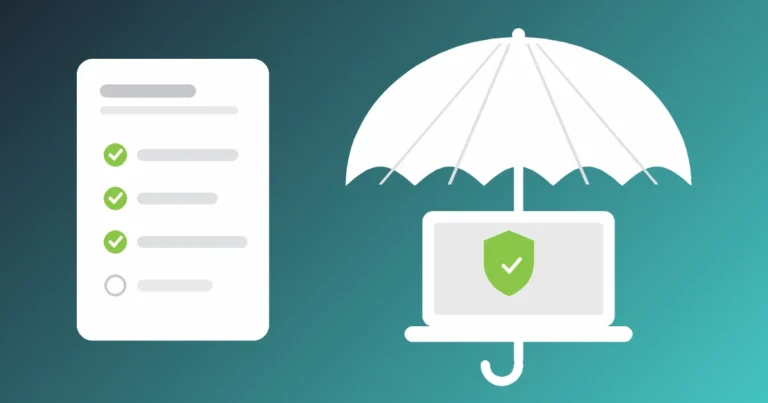
- Write compliance policies. Start simple: encryption on, a supported operating system version, a screen lock, and Microsoft Defender running. Mark a device non-compliant after a grace period rather than instantly.
- Protect personal phones. Apply app protection policies to Outlook, Teams and OneDrive for everyone who reads work email on their own phone.
- Only then connect Conditional Access. Require a compliant device or a protected app before anyone can open company email and files, and run the policy in report-only mode for a week to see who it would block.
Check this setting first: Intune’s default treats a device with no compliance policy assigned as compliant. Microsoft advises changing it to “Not compliant” when you use Conditional Access, otherwise any device you forgot to cover gets through.
This set lines up well with Cyber Essentials, whose technical controls include secure configuration, security updates and malware protection. Intune does not certify you, but it makes those controls easier to apply consistently and to show an assessor. The NCSC’s device security guidance is a sound reference for which settings to choose on each platform.
What Intune will not do for you
Intune is often bought as if it were a complete security product, and it is not. Knowing its edges saves disappointment later.
It does not back up files. Wiping a laptop removes whatever was saved only on that laptop. Files need to live in OneDrive or SharePoint, ideally with a separate backup of Microsoft 365 itself, before remote wipe becomes a safe action rather than a destructive one.
It is not antivirus. Intune can switch on and configure Microsoft Defender, and it can read a device’s threat status, but detecting and responding to attacks is the job of Defender for Business, which Business Premium also includes as a separate product that devices must be onboarded to.
It only manages what is enrolled. A laptop bought on a credit card and never enrolled is invisible to it. Conditional Access is what closes that gap, by refusing access from devices Intune does not know about.
It needs someone to look at it. Compliance reports, failed app installs and devices that have not checked in for weeks all need a person to act on them. So does the Apple push certificate: Microsoft documents a 30-day grace period after expiry, and the certificate instructions say to renew it with the same Apple account that created it. If that account belonged to someone who has since left, renewal becomes a scramble. Put the renewal date in a shared calendar on the day you create it.
Frequently asked questions
Is Intune worth it for a business with fewer than ten staff?
Usually yes, if the business already needs Business Premium for its security features, because Intune comes with it. The setup effort is front-loaded: a small office can be configured in days, and from then on new laptops set themselves up. It is harder to justify buying Intune on its own for a handful of devices that never leave the office.
Can my employer see my personal photos or messages through Intune?
No. On a personal phone protected by app protection policies, the business sees the app version and whether the protection is working, not personal content. Even on an enrolled company device, Intune shows device details and managed apps rather than personal files, messages or browsing history. Your device policy should say this plainly.
Do we need Intune if we already have antivirus?
They do different jobs. Antivirus looks for malicious software on a device. Intune makes sure the device is set up correctly in the first place: encrypted, updated, locked with a PIN and running approved apps. It also lets you block devices that fall short from company data, which antivirus cannot do.
Can we enrol laptops staff are already using?
Yes. A Windows 11 laptop can be joined to Microsoft Entra ID with the user’s work account and enrol automatically. Laptops that were set up with local accounts or joined to an old office server often enrol more cleanly after a reset, so plan for a short changeover per machine and make sure files are in OneDrive first.
Intune is at its best when it is planned rather than switched on: licences checked, devices sorted into company-owned and personal, a pilot group tested, then Conditional Access added last. Pair it with multi-factor authentication on every account and you have covered the two questions every attacker tests: who is signing in, and from what.
Get Your Devices Under Control
We set up Intune for small businesses on Microsoft 365, from enrolment and compliance policies to app protection for staff phones, and look after it once it is running.