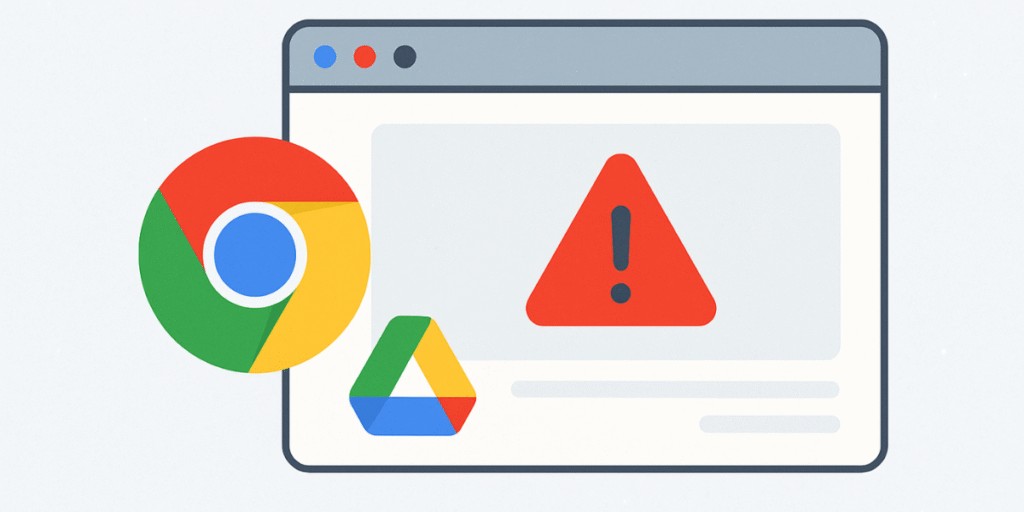
If Chrome keeps freezing, closing itself, or throwing “Aw, Snap!” errors, you’re not alone. In most cases it’s something simple: a misbehaving extension, a cluttered profile, or graphics settings that don’t play nicely with your computer. Use this guide like a checklist—start with the quick wins, then move to the deeper fixes only if you need to.
What a “crash” looks like (so we’re on the same page)
- Chrome suddenly quits or stops responding
- Tabs reload again and again or never finish loading
- You hear fans spin up and see CPU/RAM go sky-high
- It gets worse after sleep/wake or when you plug in a second screen
The short answer (why it happens)
- Extensions: One bad add-on can spoil the lot
- Corrupted profile or cache: Chrome’s own files get messy over time
- Hardware acceleration: Graphics hand-off can crash on some machines/drivers
- Outdated software: Old Chrome or OS builds conflict
- Security tools: Over-protective antivirus/firewalls kill Chrome processes
- Too much at once: Dozens of heavy tabs on limited memory
Quick wins (do these first)
1) Update Chrome
- Go to ⋮ > Help > About Google Chrome
- Let it update and Relaunch
Why it helps: many crashes are fixed quietly in updates.
2) Try Incognito
- Ctrl/Cmd + Shift + N
- If Incognito is stable, the culprit is very likely an extension.
3) Restart the computer
- Old school, but it clears stuck processes and graphics hiccups.
Fixes that solve most cases
4) Sweep your extensions
- Visit chrome://extensions/
- Toggle everything off, test, then turn them on one by one
- Remove anything you don’t recognise or rarely use
What to watch: ad blockers, coupon pop-ups, PDF tools, anything newly installed.
5) Clear clutter (cache & cookies)
- ⋮ > Settings > Privacy & security > Clear browsing data
- Time range: Last 7 days (go All time if needed)
- Tick Cached images and files and Cookies and other site data → Clear data
You’ll have to sign back in to some sites, but it’s worth it.
6) Turn off Hardware Acceleration
- ⋮ > Settings > System > Use hardware acceleration when available → Off → Relaunch
If crashes stop, you’ve found the issue. You can keep it off permanently or update your graphics driver (see below) and try turning it back on later.
If it’s still crashing, try these next
7) Start fresh with a new Chrome profile
- ⋮ > Settings > You and Google > Manage profiles → Add
- Test the new profile before you sign in or install extensions
- If it’s stable, sign in to sync bookmarks/passwords, then add extensions slowly
Why it helps: it leaves any corrupted settings behind.
8) Reset Chrome’s settings (non-destructive)
- ⋮ > Settings > Reset settings > Restore settings to their original defaults
This keeps your bookmarks and passwords, but clears out odd tweaks and disables extensions.
9) Update your system and graphics
- Windows:
- Install pending Windows Updates
- Update GPU driver (NVIDIA/AMD/Intel). If you’re seeing weirdness, run:
- Open Command Prompt as Admin →
sfc /scannow - Then →
DISM /Online /Cleanup-Image /RestoreHealth
- Open Command Prompt as Admin →
- macOS: Apple menu > System Settings > General > Software Update
- Linux: Update via your package manager; ensure NVIDIA/Mesa drivers are current
Display issues after sleep or when using a second monitor are classic GPU/driver symptoms.
10) Check antivirus and firewall
- Temporarily pause real-time scanning (only on a trusted network) and test Chrome
- If it stabilises, add Chrome to the allow-list, then turn protection back on
11) Remove dodgy apps and toolbars
- Windows: Settings > Apps → sort by Install date; remove the recent/suspicious ones
- macOS: Applications → drag to Bin; also check System Settings > General > Login Items
12) Reset experiments (Chrome flags)
- Visit chrome://flags → Reset all → Relaunch
If you rely on any flags, re-enable them one at a time.
13) Last resort: clean reinstall
- Back up bookmarks if you don’t use Sync
- Uninstall Chrome
- Delete leftover profile folders:
- Windows:
C:Users<you>AppDataLocalGoogleChromeUser Data - macOS:
~/Library/Application Support/Google/Chrome/ - Linux:
~/.config/google-chrome/(or~/.config/chromium/)
- Windows:
- Install the latest Chrome and test before adding extensions back
Fixes by symptom (handy shortcuts)
Only certain sites crash
- Incognito test (no extensions) → if stable, it’s an extension clash
- Clear data for that site (click the padlock → Site settings → Clear data)
- Try turning off hardware acceleration
It crashes after sleep or with an external display
- Turn off hardware acceleration
- Update graphics driver / OS
- Test without the external monitor plugged in
It happens with lots of tabs open
- Close heavy tabs; use Chrome’s Task Manager (Shift+Esc) to spot hogs
- Turn on Performance > Memory Saver in Settings
- If you always run dozens of tabs on 8GB RAM, consider a memory upgrade
Simple habits that prevent future crashes
- Keep Chrome and your OS up to date
- Limit extensions to the ones you actually use (review monthly)
- Split work and personal into separate Chrome profiles
- Avoid experimental flags on your main machine
- Turn on Enhanced Safe Browsing under Privacy & security
FAQs
Will clearing cache delete my saved passwords?
No. Passwords live in Chrome’s Password Manager. You may need to sign in to websites again, though.
Is there a “safe mode” for Chrome?
Not officially. Use Incognito and disable extensions to mimic a clean environment.
Should I leave hardware acceleration off forever?
If turning it off stops crashes on your machine, yes—it’s fine. If you update your graphics driver later, try turning it back on and see if stability holds.
How do I find a bad extension quickly?
Disable them all, then re-enable one at a time while testing. Use Shift+Esc to open Chrome’s Task Manager—extensions that chew CPU or memory are good candidates to remove.
Do I really need to reinstall Chrome?
Only if nothing else works. A new profile or a settings reset fixes most cases without the hassle.
If browser crashes or other IT niggles keep slowing your team down, our managed IT support fixes the root cause — not just the symptom.