

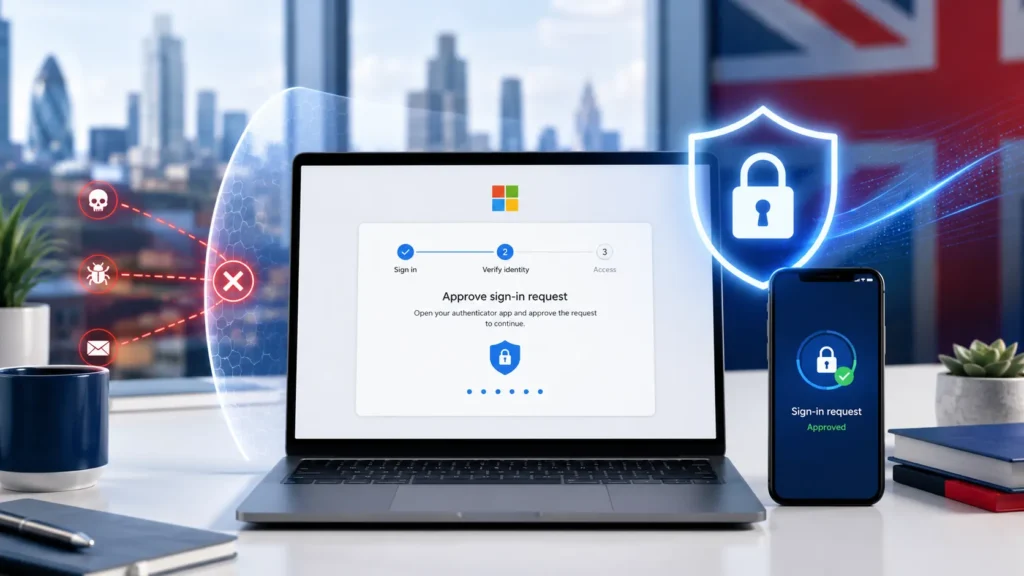

According to Microsoft’s own 2025 Digital Defense Report, MFA blocks 99.9% of automated account compromise attacks. Yet a large number of UK businesses running Microsoft 365 still haven’t switched it on. If your team logs into Outlook, Teams, or SharePoint with just a password, every one of those accounts is a door that’s been left unlocked.
This guide walks you through exactly how to set up multi-factor authentication (MFA) in Microsoft 365, including which option suits your business, how to roll it out without disrupting your team, and one threat most MFA guides completely ignore.
What Is MFA and Why Does It Matter for UK Businesses?
Multi-factor authentication means that logging in requires two things: something you know (your password) and something you have (usually your phone). Even if a criminal gets hold of your password, they still can’t get in without that second step.
Microsoft 365 accounts face more than 600 million identity attacks every day. Most of them are automated and use stolen or guessed passwords. MFA stops the vast majority of these attempts outright. It’s also now a requirement under Cyber Essentials v3.3, which means any UK business applying for certification must have MFA enabled on all cloud services and devices that connect to the internet.
The good news is that setting it up doesn’t take long. Microsoft has built MFA into every Microsoft 365 subscription, and the basic option is free to use right now.
Security Defaults vs Conditional Access: Which Option Is Right for You?
Microsoft offers two ways to enforce MFA. Choosing the right one depends on your Microsoft 365 plan and how much control you need.
Security Defaults
This is the simpler option and it’s included in every Microsoft 365 plan at no extra cost. When you switch it on, all users are required to set up MFA the next time they sign in. It applies to everyone, including admins, with no exceptions.
Security defaults are the right choice for most small and medium-sized businesses. They’re quick to set up, require no ongoing management, and give you solid baseline protection immediately. The only limitation is that you can’t customise the rules. Everyone gets the same policy, full stop.
Conditional Access
Conditional Access lets you create more targeted rules. For example: require MFA only when staff sign in from outside the office, or only when accessing sensitive applications. It’s significantly more powerful, but it requires Microsoft Entra ID P1, which comes with Microsoft 365 Business Premium (roughly £18.60 per user per month as of 2026).
One important point: security defaults and Conditional Access cannot run at the same time. You’ll need to disable one before enabling the other. If you’re currently on security defaults and want to move to Conditional Access, you’ll need to rebuild your MFA policy from scratch within the Conditional Access interface.
For most businesses, security defaults are the right starting point. You can always move to Conditional Access later as your needs grow. If you’re not sure which plan you’re on, your managed IT support provider can check and advise you.
How to Enable MFA Using Security Defaults (Step by Step)
You’ll need a Global Administrator account to do this. It takes around five minutes.
- Sign in to the Microsoft Entra admin centre at entra.microsoft.com.
- In the left menu, go to Identity, then Overview, then Properties.
- Scroll to the bottom and click Manage security defaults.
- Toggle Security defaults to Enabled.
- Select a reason from the dropdown (for example, “My organisation uses security defaults”).
- Click Save.
That’s it for the admin side. Your users will now be prompted to set up MFA the next time they sign in. They’ll be guided through the process by Microsoft and will typically be asked to download the Microsoft Authenticator app on their phone.
One thing to do before you flip the switch: let your team know it’s coming. Nobody likes a surprise login prompt at 8am on a Monday.
How to Roll Out MFA to Your Team Without the Chaos
MFA rollouts go wrong when staff don’t know what to expect. A bit of preparation makes the difference between a smooth change and a helpdesk queue of confused colleagues.
Send a short email before you enable it. Explain what MFA is, why you’re turning it on, and what staff will need to do. Tell them they’ll see a new prompt next time they sign in and that it takes about two minutes to set up. Ask them to have their phone ready.
The Microsoft Authenticator app is the recommended option. It’s free, available on iOS and Android, and the setup process is guided. Staff open the app, scan a QR code shown on their screen, and approve a test notification. Done. If someone doesn’t have a smartphone, Microsoft also supports SMS codes as a backup, though these are less secure.
Give staff a grace period to complete setup before you enforce stricter access rules. If you’re using Microsoft 365 across your whole organisation, it’s worth running through the setup yourself first so you can answer questions confidently.
What Is MFA Fatigue and How Do You Stop It?
This is the part most MFA guides skip entirely. MFA fatigue, sometimes called push bombing, is a real attack that criminals use specifically against organisations that have MFA enabled.
Here’s how it works. An attacker gets hold of a staff member’s username and password (often through a phishing email or a data breach on another service). They then try to sign in repeatedly, which triggers a wave of MFA approval requests to the victim’s phone. The victim, confused or frustrated by the constant notifications, eventually taps “Approve” just to make them stop. The attacker gets in.
The fix is straightforward. Train your team to never approve an MFA request they didn’t personally trigger. If a notification arrives unexpectedly, they should deny it and report it to IT immediately. For businesses on Microsoft 365 Business Premium, you can also enable number matching in Authenticator, which requires the user to type a two-digit code shown on their screen into the app, making automated push attacks much harder to exploit.
What Happens When a Staff Member Gets a New Phone?
This is something a lot of businesses don’t think about until it happens. A staff member gets a new phone, loses their old one, or has it stolen. Their Microsoft Authenticator app is gone, and suddenly they can’t log in.
The solution is to plan for this before it happens. There are two things to put in place. First, make sure every user has a backup verification method registered, such as a mobile phone number for SMS codes, in case the Authenticator app becomes unavailable. Second, make sure your IT admin knows how to reset MFA for a user in the Microsoft Entra admin centre, which takes about 60 seconds and gets the person back up and running immediately.
We’ve put together a separate guide on how to transfer Microsoft Authenticator to a new phone, which covers every step of the process so staff can handle it themselves with minimal IT involvement.
Frequently Asked Questions
Is MFA free with Microsoft 365?
Yes. Security defaults, which enforce MFA for all users, are included in every Microsoft 365 subscription at no additional cost. More advanced options, such as Conditional Access policies, require a Microsoft Entra ID P1 licence, which comes with Microsoft 365 Business Premium.
Does MFA slow down my staff’s login process?
Slightly, but not in a meaningful way. The Authenticator app sends a push notification that takes about two seconds to approve. Most users barely notice it after the first week. On trusted devices, Microsoft often remembers the MFA approval for 90 days, so staff don’t have to repeat the step every time they open their laptop.
What happens if a staff member can’t access their phone during an MFA prompt?
If a staff member has a backup verification method set up, such as an SMS number or a secondary email address, they can use that instead. Without a backup method, they’ll need an IT admin to temporarily reset their MFA so they can register a new device. This is why setting up a backup verification method at the point of initial setup matters.
Do I need MFA if we use single sign-on (SSO)?
Yes. SSO simplifies the login experience by letting staff access multiple applications with one set of credentials, but that one set of credentials becomes a single point of failure if it’s compromised. MFA adds the protection layer that SSO on its own doesn’t provide.
Is MFA required for Cyber Essentials certification?
Yes. Under Cyber Essentials v3.3, MFA is required on all cloud services and administrator accounts. If you’re planning to get certified or renew your certification, enabling MFA in Microsoft 365 is a mandatory step. Our guide to Cyber Essentials certification covers all five technical controls in detail.
Can I set up MFA myself or do I need IT support?
If you have Global Administrator access to your Microsoft 365 tenant, you can enable security defaults yourself by following the steps in this guide. For Conditional Access, or if you’re not sure about your current setup, it’s worth getting your IT provider involved to avoid accidentally locking users out during the change.
MFA is one of the most effective security measures any business can put in place, and in Microsoft 365 it costs nothing to turn on. If you’d like help enabling it across your organisation, or if you want to review your wider Microsoft 365 security setup, get in touch with the UK IT Services team for a free consultation.